 coderccb
搭建自己的 VitePress 个人博客
一、介绍
VitePress 是一个以 Markdown 为中心的静态网站生成器。你可以使用 Markdown 来书写内容(如文档、博客等),然后 VitePress 会帮助你生成一个静态网站来展示它们。
VitePress 诞生的初衷是为了支持 Vue.js 及其子项目的文档需求,但是现在它已经在帮助大量用户构建他们的文档、博客和其他静态网站。
二、安装
- 安装 node
# 查看node版本
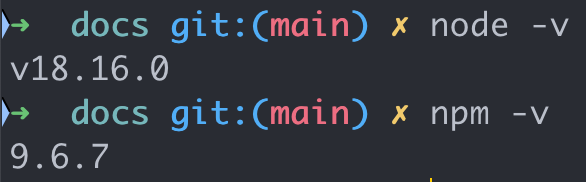
node -v# 查看node版本
node --version# 查看npm版本
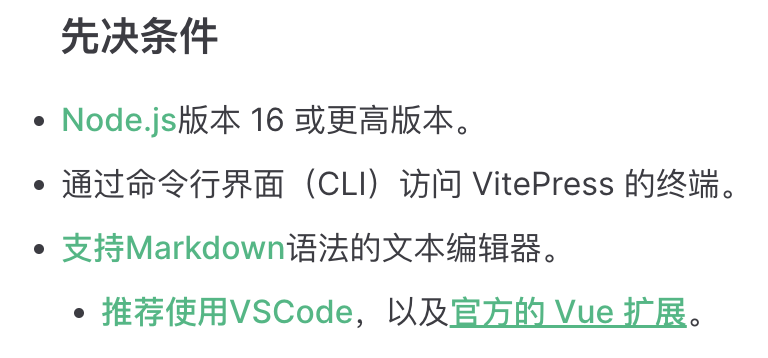
npm -v- Node.js版本 16 或更高版本
- npm常见命令与操作
三、 初始化项目
进入桌面
shellcd ~/desktop创建文件夹并进入到项目的目录中
shell# mkdir 创建文件夹指令; && 表示当前命令执行成功后会执行下一条指令。 mkdir vitepress-starter && cd vitepress-starter初始化
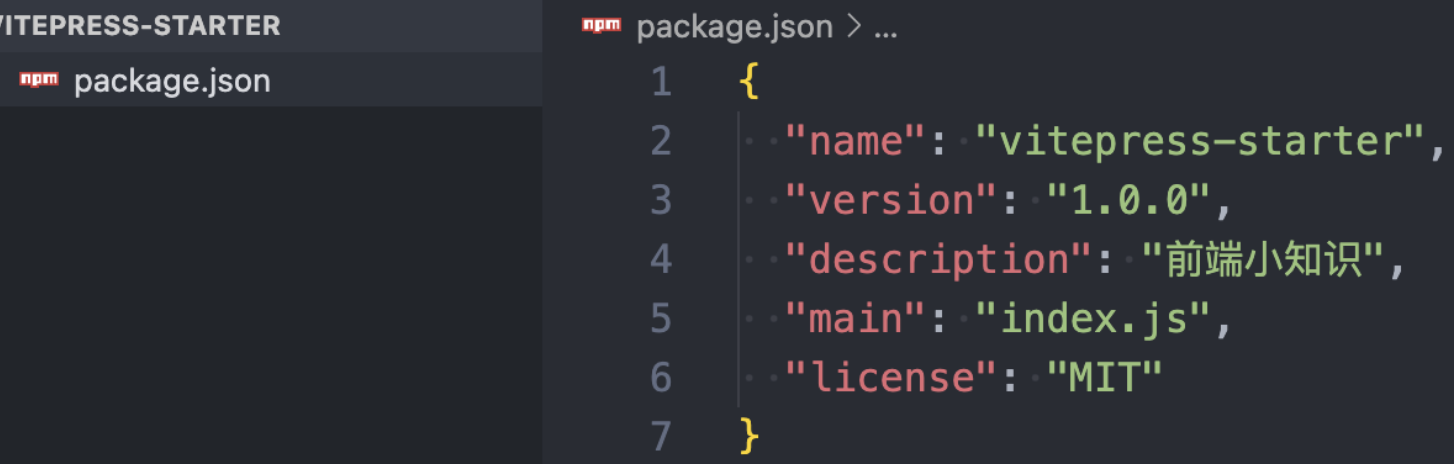
npm inityarn init / npm init- 本地安装 VitePress
npm install -D vitepressyarn add -D vitepress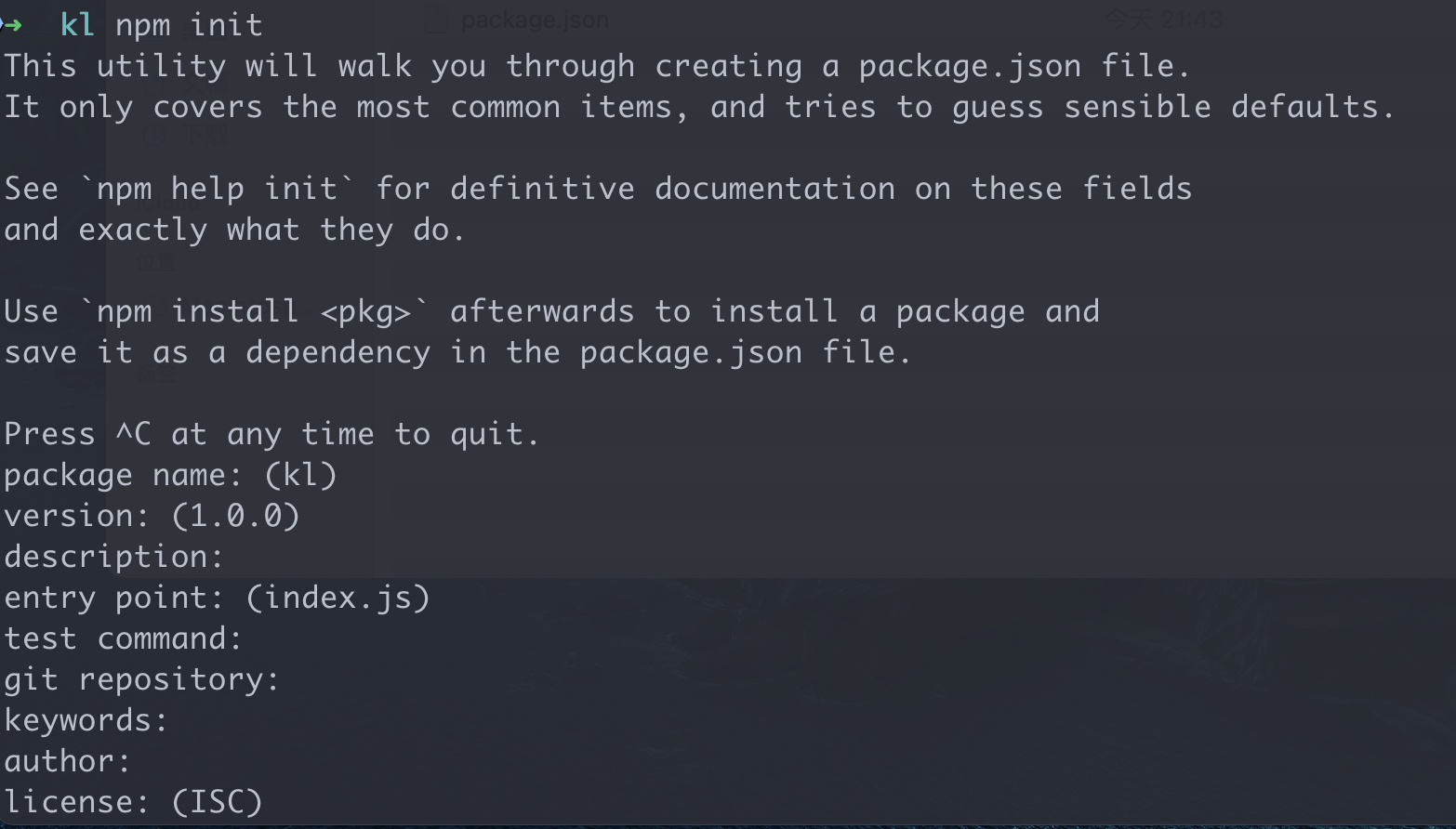
创建你第一篇文档
shell# echo 写入内容到项目的 docs/index.md 中 mkdir docs && echo '# Hello VitePress' > docs/index.md在
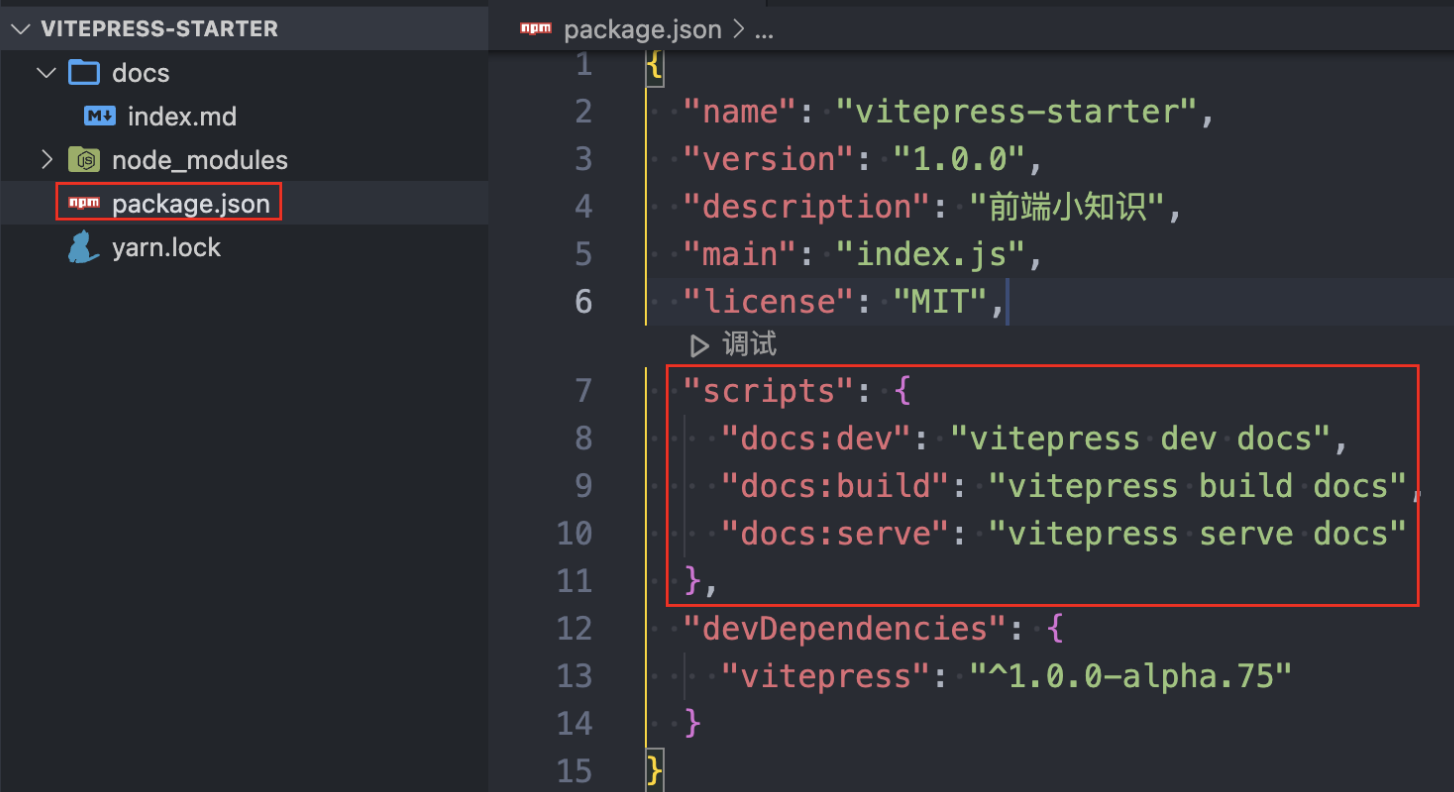
package.json.添加一些script
"scripts": {
 "dev": "vitepress dev docs --port 8080 --open",
 "build": "vitepress dev build docs",
 "serve": "vitepress dev serve docs"
},"scripts": {
"dev": "vitepress dev docs --port 8080 --open",
"docs:dev": "vitepress dev docs", // 本地运行调试 --port作为参数来配置服务器的端口。
"docs:build": "vitepress build docs", // 项目打包:最终结果会在 .vitepress/dist 中
"docs:serve": "vitepress serve docs" // 预览打包后的效果,此命令只有 build 成功后才会执行成功。
},
在本地服务器上启动文档站点
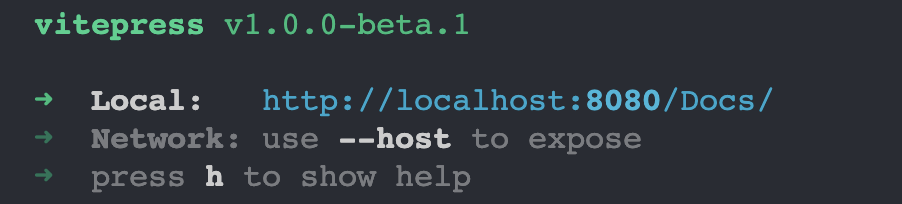
执行 yarn docs:dev 看到如下界面即表示运行成功。
shellyarn docs:devjsyarn devjsnpm run devVitePress 会在
http://localhost:3000启动一个热重载的开发服务器。现在,你应该有了一个基本的单功能强大的 VitePress 文档站点了。

四、项目配置
如果没有任何配置,这个站点将会是非常局限的,用户也无法在你的网站上自由导航。为了更好地自定义你的网站,首先,你需要在你的文档目录下创建一个
.vitepress目录。所有 VitePress 相关的文件都将会被放在这里。你的项目结构可能是这样:
.
├─ docs
│  ├─ .vitepress
│  │  └─ config.js
│  └─ index.md
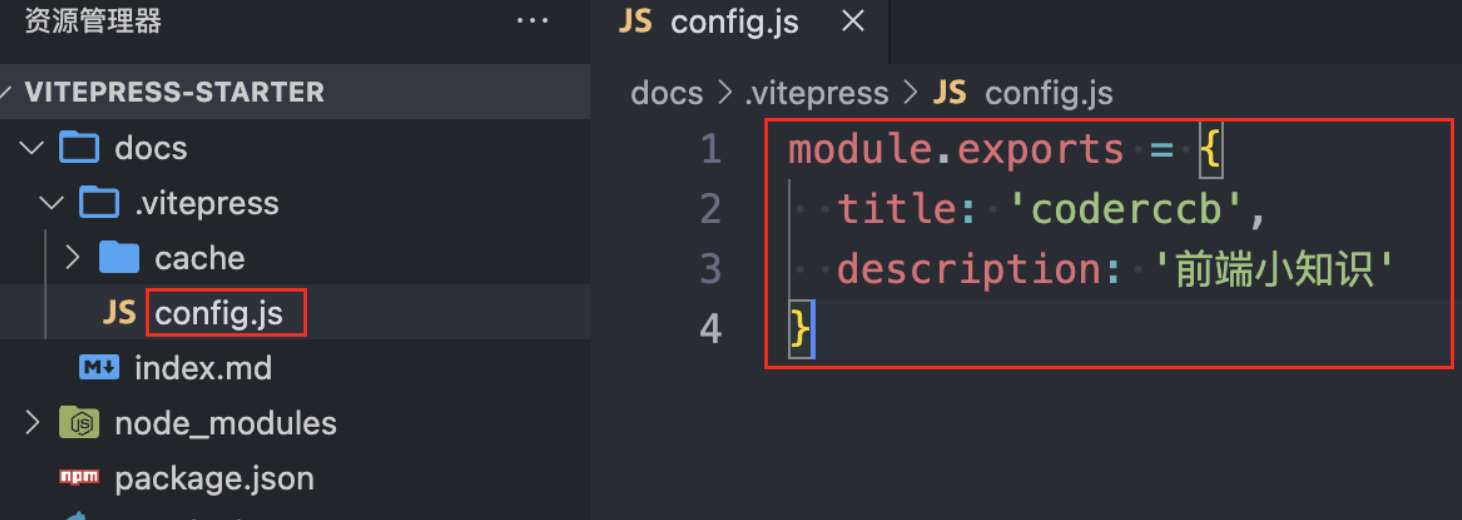
└─ package.json一个 VuePress 站点必要的配置文件是 .vitepress/config.js,它应当导出一个 JavaScript 对象:
module.exports = {
  title: 'coderccb',
  description: '前端小知识'
}
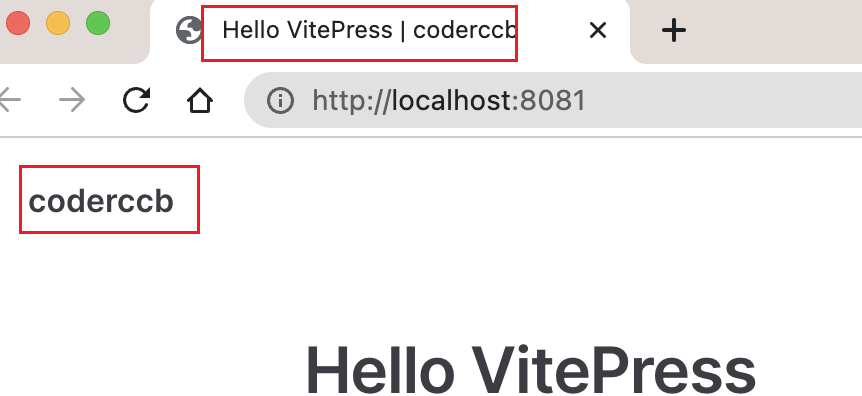
📢:注意:修改完配置请重新启动项目,下面不再重复提示。
- 布局
VitePress 的布局整体可以分为 4 种,分别为:doc page home 和 没有任何默认布局(空白页面)
WARNING
需要注意的是,下面的语法一定要写在 md 文档的头部才会生效
---
layout: doc | page | home
---// 通过此语法可以将整个页面变成空白页面,适合自定义的布局
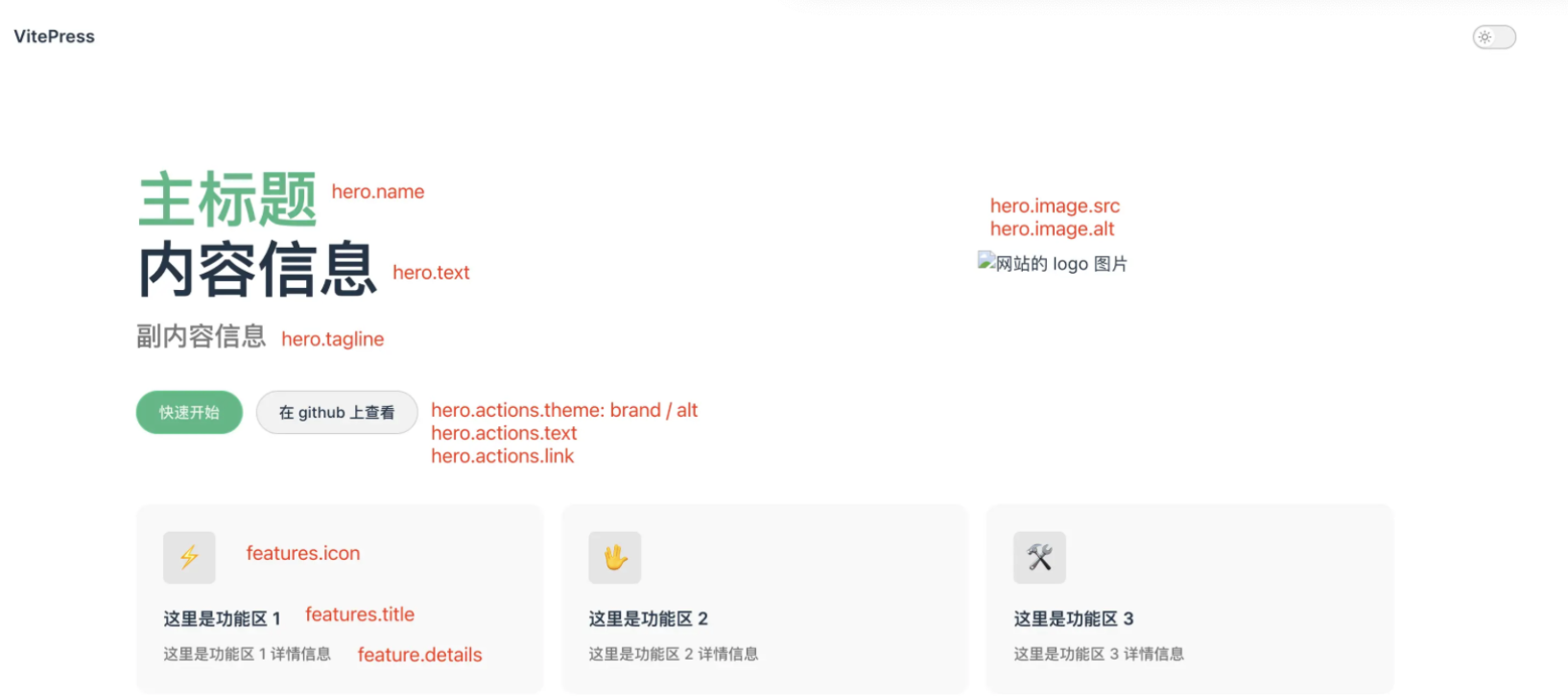
{{ $formatter.layout }}- 首页配置、
Home布局
Click me to view the code
---
layout: home

hero:
  name: 主标题
  text: 内容信息
  tagline: 副内容信息
  image:
    src: /logo.png
    alt: 网站的 logo 图片
  actions:
    - theme: brand
      text: 快速开始
      link: /guide/
    - theme: alt
      text: 在 github 上查看
      link: https://github.com/vuejs/vitepress
features:
  - icon: ⚡️
    title: 前端
    details: JavaScript, TypeScript, Vue, Vite, Node.Js
  - icon: 🖖
    title: 这里是功能区 2
    details: 这里是功能区 2 详情信息
  - icon: 🛠️
    title: 这里是功能区 3
    details: 这里是功能区 3 详情信息
---
PageDoc布局
这两种基本都是在书写文档的详细内容时而需要的布局。从表现形式上看也只是文章内容显示位置上面的不同及 page 相比较 doc 会默认缺少一些内容比如 Edit Link,NextPage PrePage 等。
大多数情况下在编写内容时推荐使用
doc。
---
layout: doc
---
---
layout: page
---
- 如何创建文档
假设你现在点击页面上的 快速开始 不出意外直接 404 了,此时查看首页配置 快速开始的 link 为 /guide/what-is-vitepress.md
解决此问题:在 /docs 下新建文件 guide/index.md 随便写入内容。再次点击即可访问。
VitePress会根据docs/下的文件内容映射成可访问路由。比如/docs/guide/getting-started.md则访问地址为http://localhost:5173/guide/
文档书写规范推荐为以下结构
├─ docs
│  ├─ .vitepress
│  ├─ └─ config.js
│  ├─ └─ guide
│  │   ├─ └─ what-is-vitepress.md
│  └─ index.md
└─ package.json五、全局配置对象
VitePress 提供了一个配置对象,该对象应当存在于 /docs/.vitepress/config.js 中。在这里可以配置 Nav Sidebar 等重要信息。
在 .vitepress 中新建 config.js 文件并增加如下代码。
import { defineConfig } from 'vitepress';

export default defineConfig({});Nav导航栏
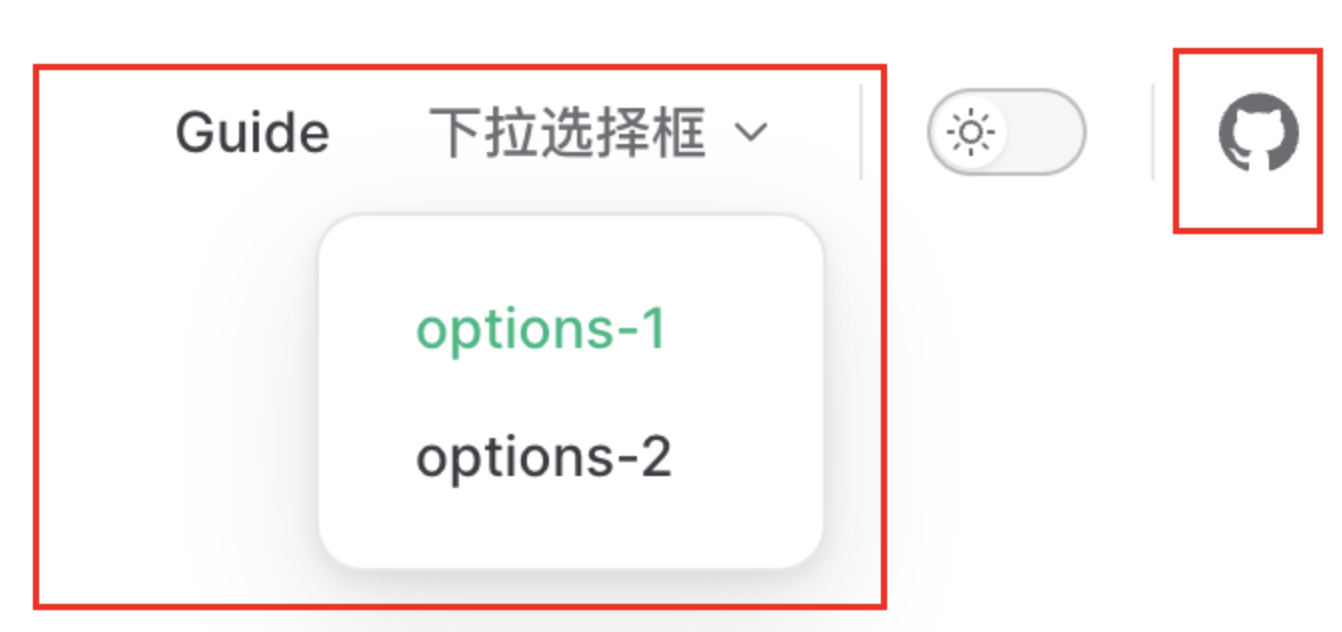
Nav 配置有两种方式,直接点击跳转和下拉菜单样式。详情参考以下配置信息。 主要有以下字段:
link:当触发点击事件时跳转的地址;可以是外链也可以是项目内的路径。activeMatch: 需要被高亮的nav。text:显示到页面的信息。Click me to view the code
jsimport { defineConfig } from 'vitepress'; export default defineConfig({ themeConfig: { nav: [ { text: 'Guide', link: '/guide/'}, { text: '下拉选择框', items: [ { text: 'options-1', link: '/' }, { text: 'options-2', link: 'http://www.baidu.com' } ] } ] } });
社交链接 严格来说不算 nav 范畴,但是显示位置基本相同。
Click me to view the code
export default defineConfig({
  themeConfig: {
    socialLinks: [
      // 默认支持 'discord' | 'facebook' | 'github' | 'instagram' | 'linkedin' | 'slack' | 'twitter' | 'youtube'
      { icon: "github", link: "https://github.com" }
    ],
  }
});icon:discordfacebookgithubinstagramlinkedinslacktwitteryoutube或者svg字符串link:跳转链接。
对标如下页面:
Sidebar侧边栏导航
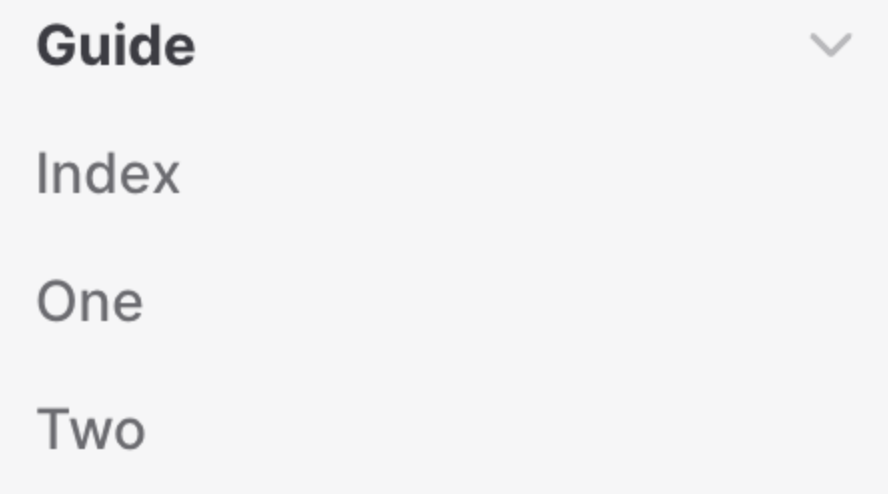
sidebar 同样有两种配置方式。接受以下配置对象:
text:侧边栏块的title。items:侧边栏的每一项,text为标题;link为跳转地址。collapsible:菜单是否为可折叠的Boolean。collapsed:是否默认折叠Boolean只有配置collapsiable时此配置才会生效。
数组配置方式
Click me to view the code
sidebar: [
  {
    text: 'Guide',
    items: [
      { text: 'Introduction', link: '/guide/' },
      { text: 'Getting Started', link: '/getting-started' },
    ],
    // 是否收缩
    collapsible: true,
    // 是否折叠
    collapsed: false
  }
],对象配置方式
Click me to view the code
sidebar: {
  '/guide/': [
    {
      text: 'Guide',
      items: [
        { text: 'Index', link: '/guide/' }, // /guide/index.md
        { text: 'One', link: '/guide/one' }, // /guide/one.md
        { text: 'Two', link: '/guide/two' } // /guide/two.md
      ],
      // 是否收缩
      collapsible: true,
      // 是否折叠
      collapsed: false
    }
  ]
}
- 静态资源与导航路由的路径书写规则。
静态资源:推荐放入 /docs/public 文件夹中。随后在 md 中使用时以 。 / 以 public 开始。
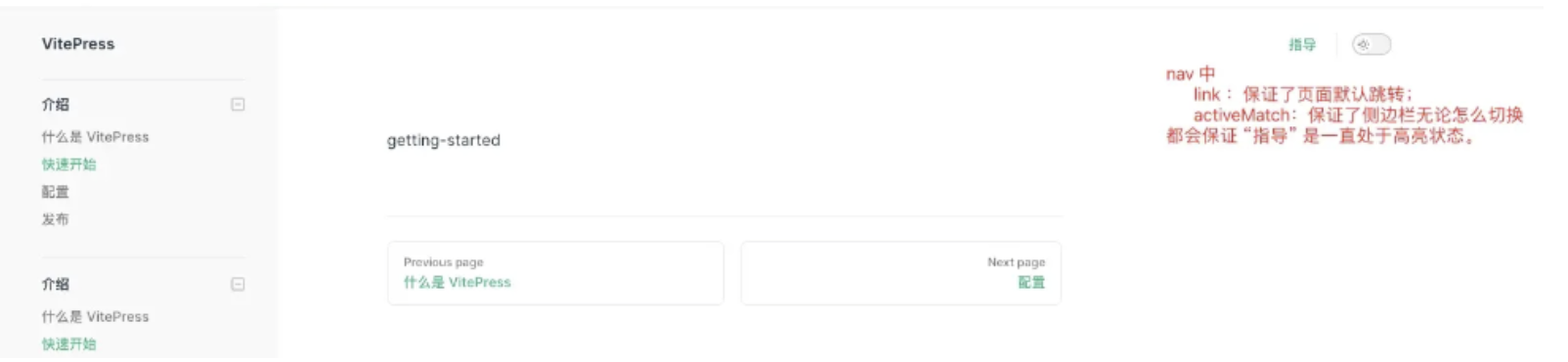
路径配置规则:以 /docs 为根目录,进行配置;/ 以 docs 开始。示例:
Click me to view the code
export default defineConfig({
  themeConfig: {
    // 主导航栏
    nav: [
      // link 点击时跳转的默认地址
      // activeMatch 无论在 guide 下的哪一个子菜单都会保持高亮。
      { text: 'Guide', link: '/guide/', activeMatch: '/guide/' },
      {
        text: '下拉选择框',
        items: [
          { text: 'options-1', link: '/' },
          { text: 'options-2', link: '/guide/' }
        ]
      }
    ],
    // 社交链接
    socialLinks: [
      // 默认支持 'discord' | 'facebook' | 'github' | 'instagram' | 'linkedin' | 'slack' | 'twitter' | 'youtube'
      { icon: "github", link: "https://github.com" }
    ],
    // 侧边导航栏
    sidebar: {
      '/guide/': [
        {
          text: 'Guide',
          items: [
            { text: 'Index', link: '/guide/' }, // /guide/index.md
            { text: 'One', link: '/guide/12' }, // /guide/one.md
            { text: 'Two', link: '/guide/two' } // /guide/two.md
          ],
          // 是否收缩
          collapsible: true,
          // 是否折叠
          collapsed: false
        }
      ]
    }
  }
});
文章底部上下翻页、在
Github编辑此页、最后更新时间上下翻页 此功能虽是默认提供,也可以通过配置来定制默认的文字。
jsexport default defineConfig({ themeConfig: { docFooter: { prev: '上一篇', next: '下一篇' } } })在
Github编辑此页** 可以通过editLink来进行配置
pattern:可以分为两部分,:path为变量内容指当前的文件名称。:path之前的部分则是项目的/docs的github的文档地址。jsexport default defineConfig({ themeConfig: { editLink: { pattern: 'https://github.com/vuejs/vitepress/edit/main/docs/:path', text: 'Edit this page on GitHub' } } })最后更新时间 需要在
themeConfig平级去开启此选项,然后在themeConfig中可以去定制其展示文字。需要注意的是配置之后不会立即生效。jsexport default defineConfig({ lastUpdated: true, themeConfig: { lastUpdatedText: "最近更新时间" } })
其他全局配置信息
- 主
title内容与图片配置。
jsexport default defineConfig({ title: '自定义的 title', themeConfig: { logo: '/public/logo.png', } })
打包后输出目录的配置
jsexport default defineConfig({ outDir: '../cache' })description配置后会显示页面中<meta name="description" content="xxxx">显示jsexport default defineConfig({ description: '自定义的 description', })head配置后会显示在页面中的head中。可以配置多个。应该也能扩展VitePress的功能jsexport default defineConfig({ head: [ ['link', { rel: 'icon', href: '/public/logo.png' }], ] });
页脚通过
footer进行配置。如果Sidebar存在则页脚不会存在jsexport default defineConfig({ themeConfig: { footer: { message: 'Released under the MIT License.', copyright: 'Copyright © 2019-present Evan You' } } }完整的
config.js
- 主
Click me to view the code
import { defineConfig } from 'vitepress';

export default defineConfig({
// 基础地址
base: '/Docs/',
// 语言
lang: 'en',
// 站点标题
title: "coderccb Docs",
// 描述
description: '前端小知识',
// 主题
themeConfig: {
  siteTitle: 'coderccb',
  logo: 'https://img1.imgtp.com/2023/05/20/TsdSB5bF.png',
  darkModeSwitchLabel: '主题',
  sidebarMenuLabel: '菜单',
  returnToTopLabel: '返回顶部',
  langMenuLabel: '语言切换',
  // 主导航栏
  nav: [
    // link 点击时跳转的默认地址
    // activeMatch 无论在 guide 下的哪一个子菜单都会保持高亮。
    { text: 'Blog', link: '/blog/' },
    {
      text: '下拉选择框',
      items: [
        { text: 'options-1', link: '/' },
        { text: 'options-2', link: '/guide/' }
      ]
    },
    {
      text: 'About', link: '/about/', activeMatch: '/about/'
    }
  ],
  // 社交链接
  socialLinks: [
    // 默认支持 'discord' | 'facebook' | 'github' | 'instagram' | 'linkedin' | 'slack' | 'twitter' | 'youtube'
    { icon: "github", link: "https://github.com" }
  ],
  // 侧边导航栏
  sidebar: {
    '/blog/': [
      {
        text: 'Blog',
        items: [
          { text: '搭建自己的 VitePress 个人博客', link: '/blog/' }, // /guide/index.md
          { text: 'One', link: '/blog/one' }, // /guide/one.md
          { text: 'Two', link: '/blog/two' } // /guide/two.md
        ],
        // 是否收缩
        collapsible: true,
        // 是否折叠
        collapsed: false,
      }
    ],
    '/about/': [
      {
        text: 'About',
        items: [
          { text: 'Index', link: '/about/' }, // /about/index.md
          { text: 'One', link: '/about/one' }, // /about/one.md
          { text: 'Two', link: '/about/two' } // /about/two.md
        ],
        // 是否收缩
        collapsible: true,
        // 是否折叠
        collapsed: false,
      }
    ],
  },
  // 搜索
  search: {
    provider: 'local'
  },
  // 上下翻页
  docFooter: { prev: '上一篇', next: '下一篇' },
  // 编辑链接
  editLink: {
    pattern: 'https://github.com/DJHWSAB/Docs/edit/main/docs/:path',
    text: '在github上编辑此页'
  },
  // 页脚
  footer: {
    message: 'Released under the MIT License.',
    copyright: 'Copyright © 2023-present Evan You'
  },
  // outline设置为deep可以解析2-6层深度的标题嵌套
  outline: {
    level: 'deep',
    label: '本页目录'
  },
  lastUpdatedText: "最近更新时间",
  // aside,设定为false将关闭右侧栏,文档内容会填充剩余空白部分
  aside: true,
  // 暂时没发现这个属性有啥用
  outlineBadges: true,
  // 设置所有aside的标题
  outlineTitle: "just an demo",
},
// 最后更新时间
lastUpdated: true,
// 站点图标
head: [
  ['link', { rel: 'icon', href: 'https://img1.imgtp.com/2023/05/20/TsdSB5bF.png' }],
],
// 简洁化URL,即我们访问文件时不需要加后缀了,直接 /xxx/xxx即可,不要/xxx/xxx.md
cleanUrls: true,
// 当设置为true时,VitePress不会因死链接而导致构建失败。
ignoreDeadLinks: true,
// base: '/Coderccb-Docs/'
markdown: {
  lineNumbers: true,
},
});- 完整的
docs/index.md
Click me to view the code
---
layout: home
title: coderccb

hero:
name: Coderccb Docs
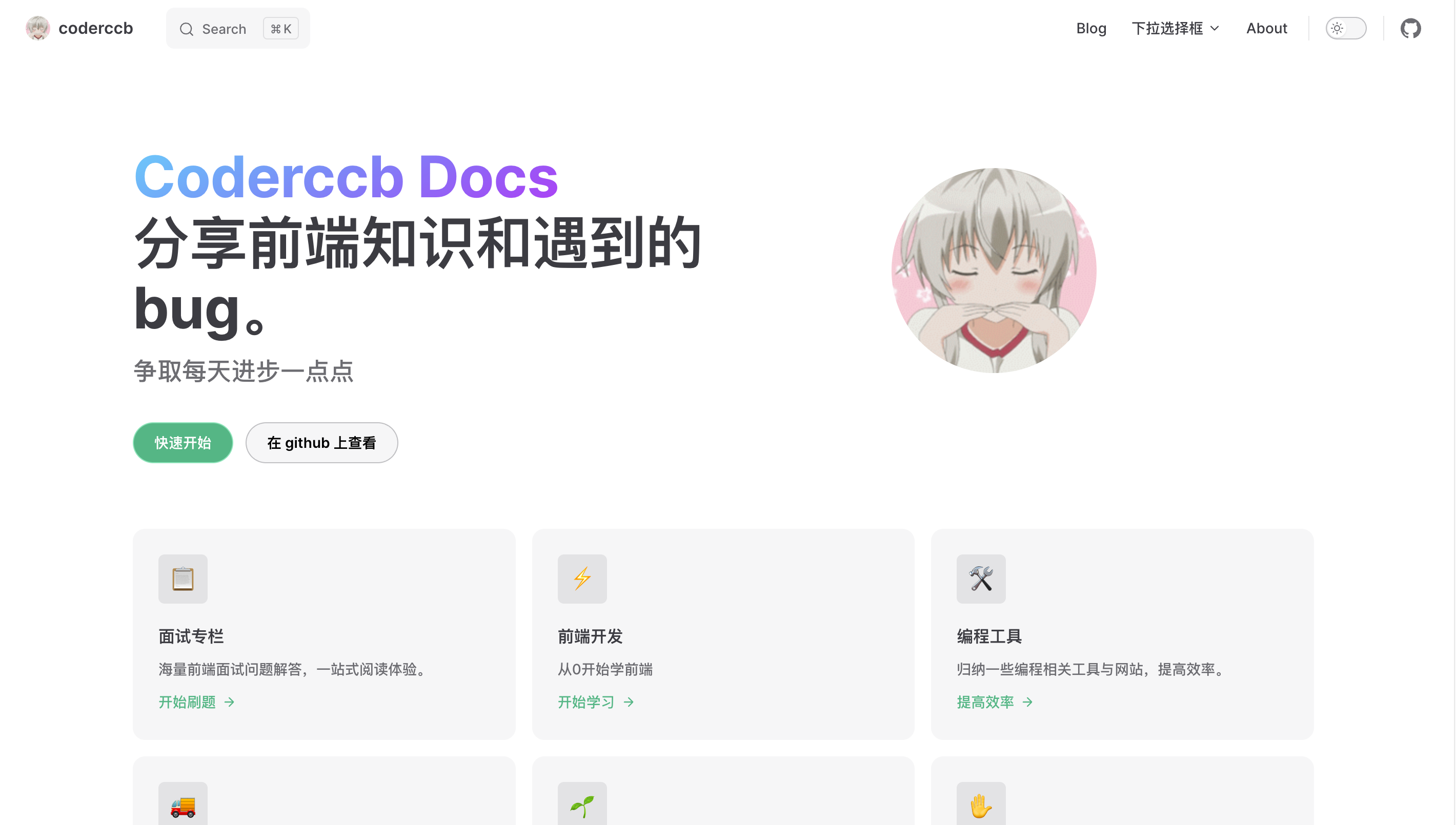
text: 分享前端知识和遇到的bug。
tagline: 争取每天进步一点点
image:
  src: https://img1.imgtp.com/2023/05/20/TsdSB5bF.png
  alt: 网站的 logo 图片
actions:
  - theme: brand
    text: 快速开始
    link: /blog/
  - theme: alt
    text: 在 github 上查看
    link: https://github.com/DJHWSAB/Docs
features:
- icon: 📋
  title: 面试专栏
  details: 海量前端面试问题解答,一站式阅读体验。
  link: '/guide/'
  linkText: 开始刷题
- icon: ⚡️
  title: 前端开发
  details: 从0开始学前端
  link: '/guide/'
  linkText: 开始学习
- icon: 🛠️
  title: 编程工具
  details: 归纳一些编程相关工具与网站,提高效率。
  link: '/guide/'
  linkText: 提高效率
- icon: 🚚
  title: bug总结
  details: 将日常工作中遇到的问题做一份备忘录,方便查阅。。
  link: '/guide/'
  linkText: 开始查阅
- icon: 🌱
  title: 成长之路
  details: 记录成长之路
  link: '/guide/'
  linkText: 记录当下
- icon: ✋
  title: 博客网站
  details: 从0搭建博客网站,到逐渐完善
  link: '/guide/'
  linkText: 开始搞起
---


<style>
:root {
  --vp-home-hero-name-color: transparent;
  --vp-home-hero-name-background: -webkit-linear-gradient(120deg, #bd34fe, #41d1ff);
  /* 鼠标小手 */
  --vp-home-hero-name-cursor: pointer;
}

img[data-v-262f00eb] {
  border-radius: 50%;
}

/* logo */
.title[data-v-4d981103]:hover,
.title[data-v-55e263fd]:hover {
  opacity: 0.6;
  transition: opacity .3s ease-in-out;
}

/* 一行只显示3个 */
.items[data-v-f5090ebe] {
  display: flex;
  justify-content: space-between;
  flex-wrap: wrap;
}

.item.grid-4[data-v-f5090ebe] {
  width: calc((100% - 4.5rem) / 3);
}

</style>六、Github Page 发布
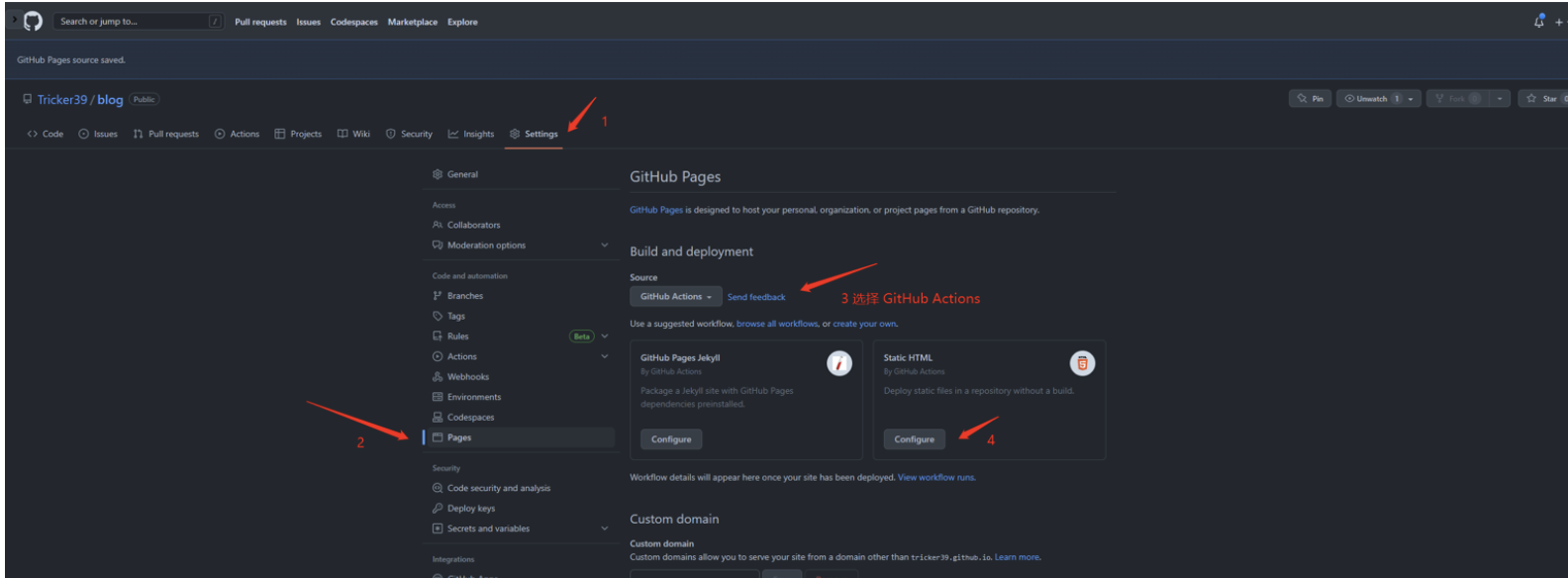
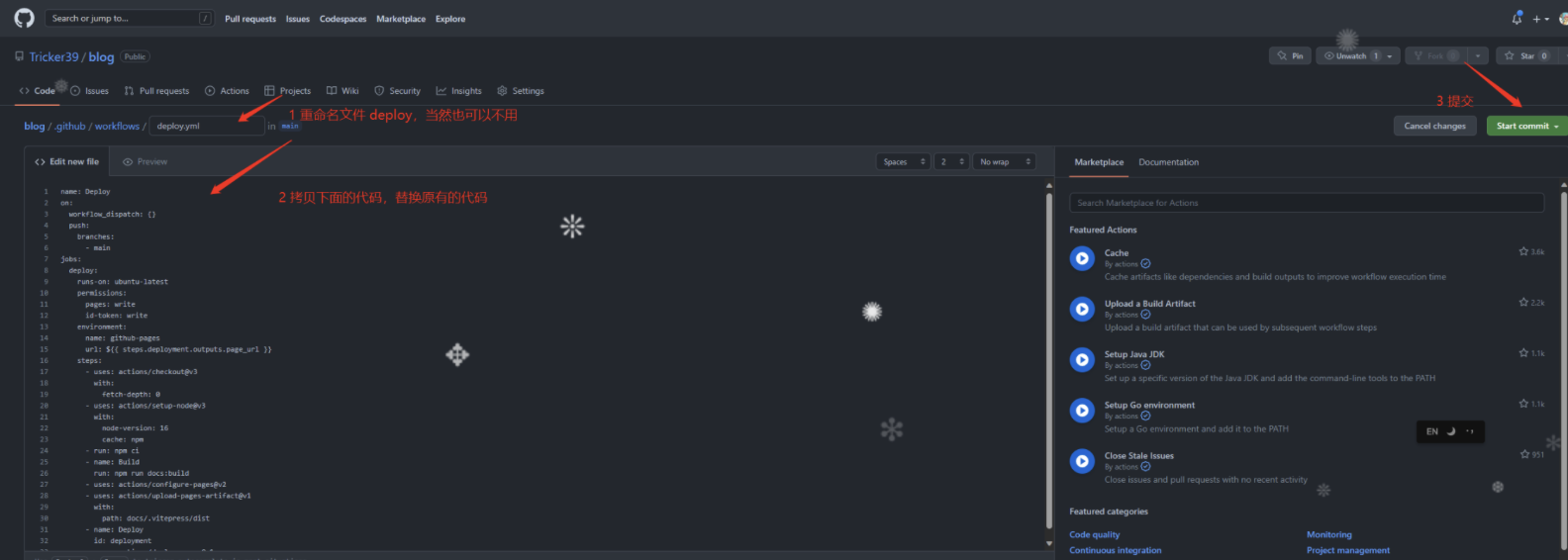
name: Deploy
on:
  workflow_dispatch: {}
  push:
    branches:
      - main
jobs:
  deploy:
    runs-on: ubuntu-latest
    permissions:
      pages: write
      id-token: write
    environment:
      name: github-pages
      url: ${{ steps.deployment.outputs.page_url }}
    steps:
      - uses: actions/checkout@v3
        with:
          fetch-depth: 0
      - uses: actions/setup-node@v3
        with:
          node-version: 16
          cache: yarn
      - run: yarn install --frozen-lockfile
      - name: Build
        run: yarn docs:build
      - uses: actions/configure-pages@v2
      - uses: actions/upload-pages-artifact@v1
        with:
          path: docs/.vitepress/dist
      - name: Deploy
        id: deployment
uses: actions/deploy-pages@v1name: Deploy
on:
workflow_dispatch: {}
push:
branches:
- main
jobs:
deploy:
runs-on: ubuntu-latest
permissions:
pages: write
id-token: write
environment:
name: github-pages
url: ${{ steps.deployment.outputs.page_url }}
steps:
- uses: actions/checkout@v3
with:
fetch-depth: 0
- uses: actions/setup-node@v3
with:
node-version: 16
cache: npm
- run: npm ci
- name: Build
run: npm run docs:build
- uses: actions/configure-pages@v2
- uses: actions/upload-pages-artifact@v1
with:
path: docs/.vitepress/dist
- name: Deploy
id: deployment
uses: actions/deploy-pages@v1#!/usr/bin/env sh
# 忽略错误
set -e #有错误抛出错误
# 构建
yarn run docs:build #然后执行打包命令
# 进入待发布的目录
cd docs/.vitepress/dist #进到dist目录
#执行这些git命令
git init
git add -A
git commit -m 'deploy'
git remote add origin git@github.com:DJHWSAB/Docs.git
git branch -M main
git push -u origin main:gh-pages
cd -
rm -rf docs/.vitepress/dist #删除dist文件夹// package.json
{
...
"scripts": {
...
"deploy":"bash deploy.sh"
}
}七、最终效果图